From Prescription to Sale
Follow a prescription from the vet's order through dispensing, or make a walk-in sale at the POS counter.
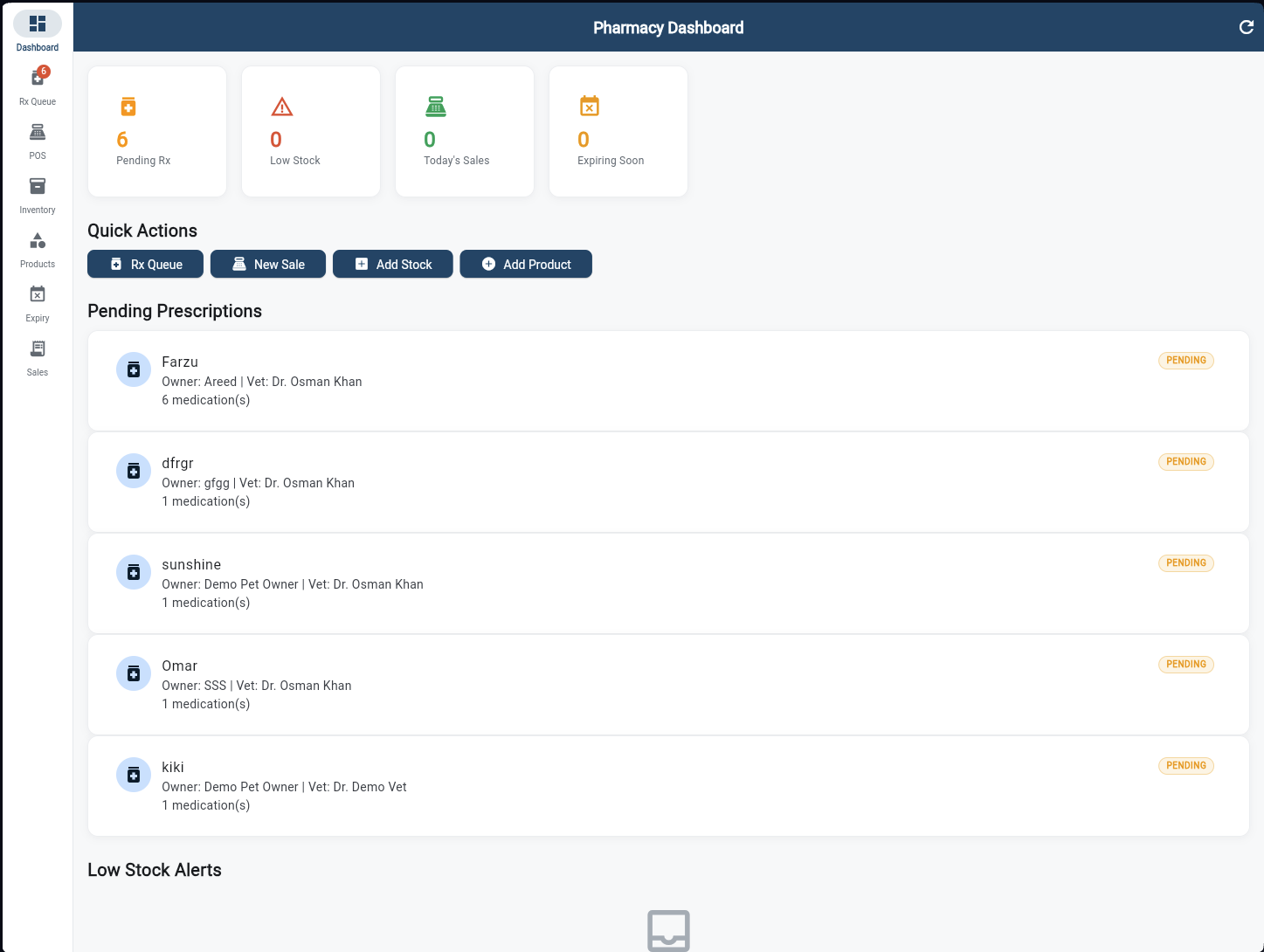
Pharmacy Dashboard
The pharmacist's command centre. Four KPI cards show Pending Rx count, Low Stock alerts, Today's Sales, and items Expiring Soon. Pending Prescriptions are listed below for instant visibility — each showing the pet, owner, prescribing vet, and number of medications. Quick Actions provide one-tap access to Rx Queue, New Sale, Add Stock, and Add Product.
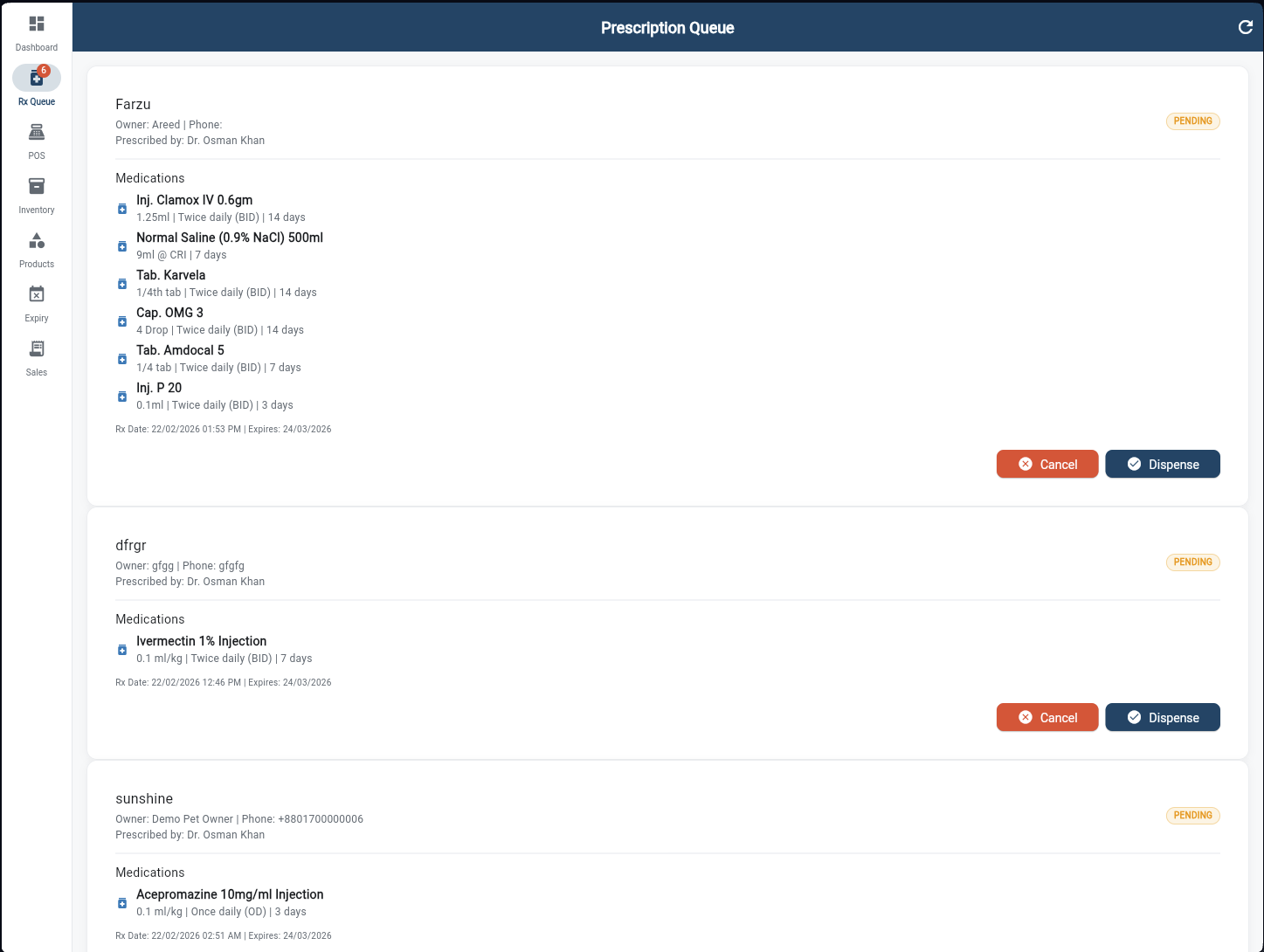
Prescription Queue
Every prescription written by a vet appears here in real-time. Each card expands to show the full medication list — drug name, dose, route, frequency, and duration. Owner contact details and Rx date are included. The pharmacist taps "Dispense" to fulfill the order, or "Cancel" to return it. Status updates propagate instantly to the vet and reception.
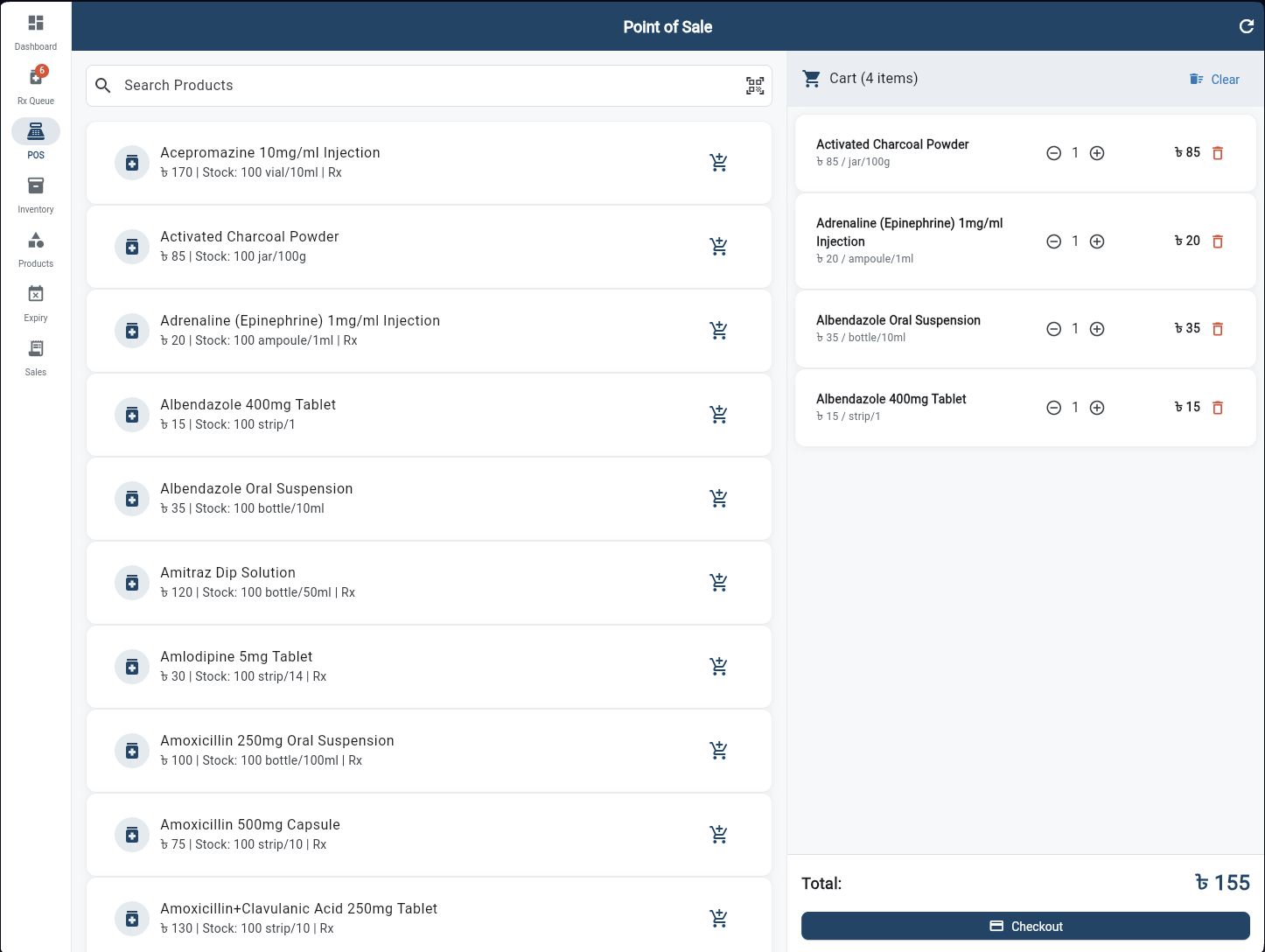
Point of Sale
A split-panel POS for walk-in and OTC sales. The left panel lists all products with price and stock level — searchable and filterable. Tap the cart icon to add items. The right panel shows the live cart with quantity controls, per-item pricing, and a running total in BDT. One tap on Checkout processes the sale and deducts stock automatically.
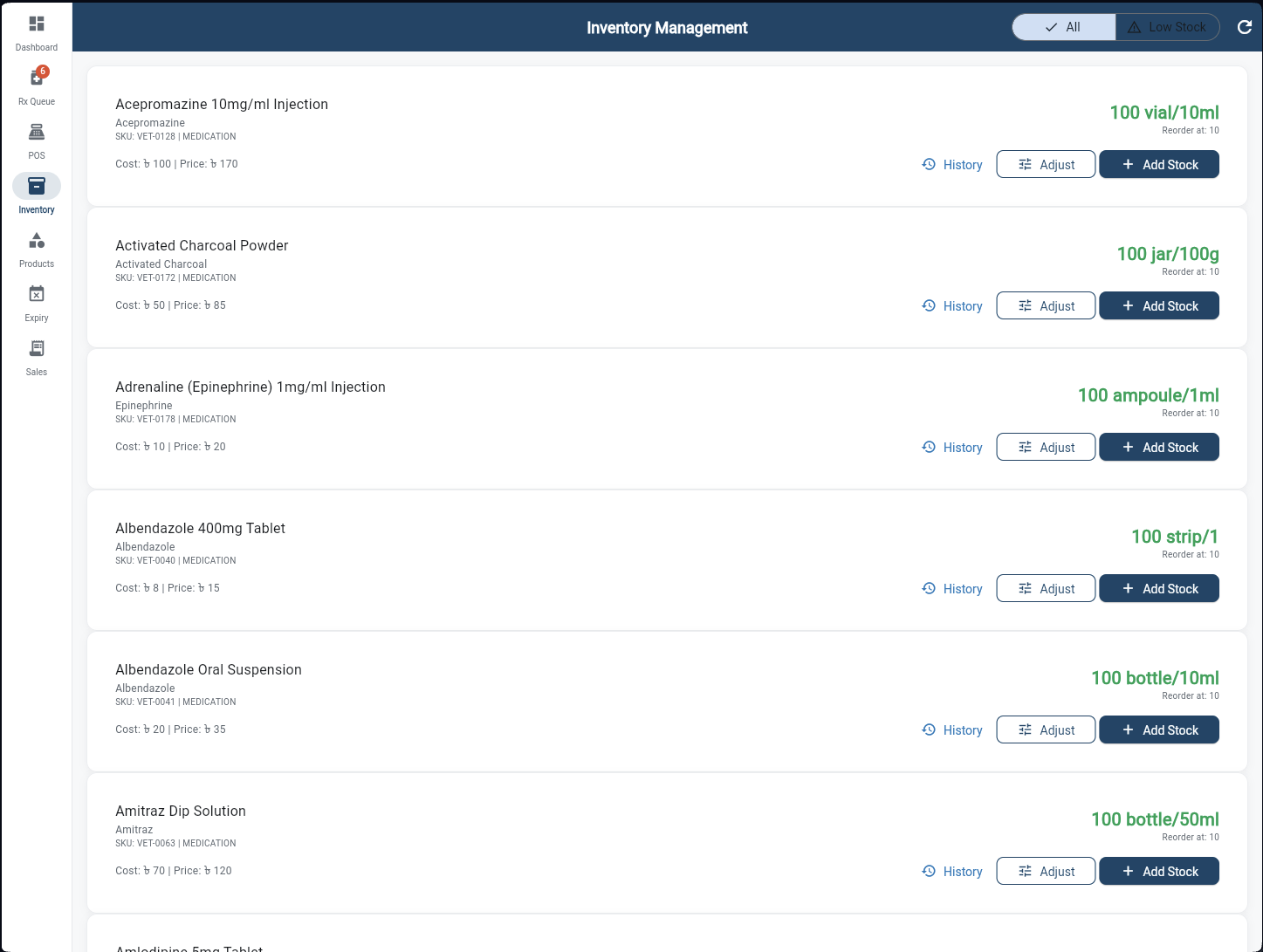
Inventory Management
Real-time stock levels for every product in the pharmacy. Each row shows the product name, generic name, SKU, cost and selling price, current stock with unit, and reorder threshold. Three actions per product: view History for movement audit trail, Adjust for corrections (breakage, returns), and Add Stock to record a purchase. A "Low Stock" filter surfaces critical items instantly.
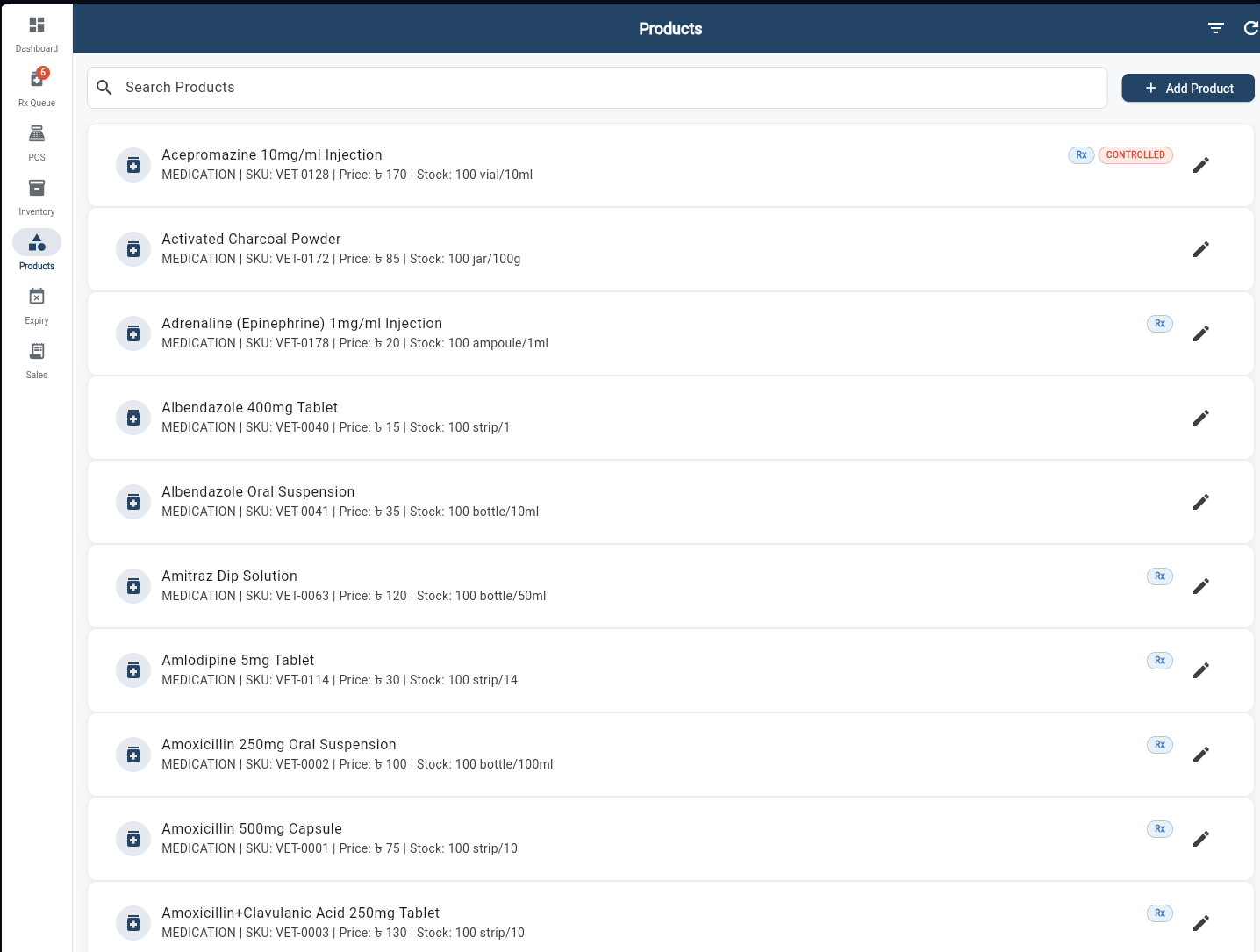
Product Catalog
The master product list with full CRUD. Each product shows its name, category (MEDICATION), SKU, price, stock, and any compliance badges — Rx (prescription only) or CONTROLLED. Search by name to find any product instantly. Tap the edit icon to update pricing, reorder levels, or product details. Add new products directly from this screen.
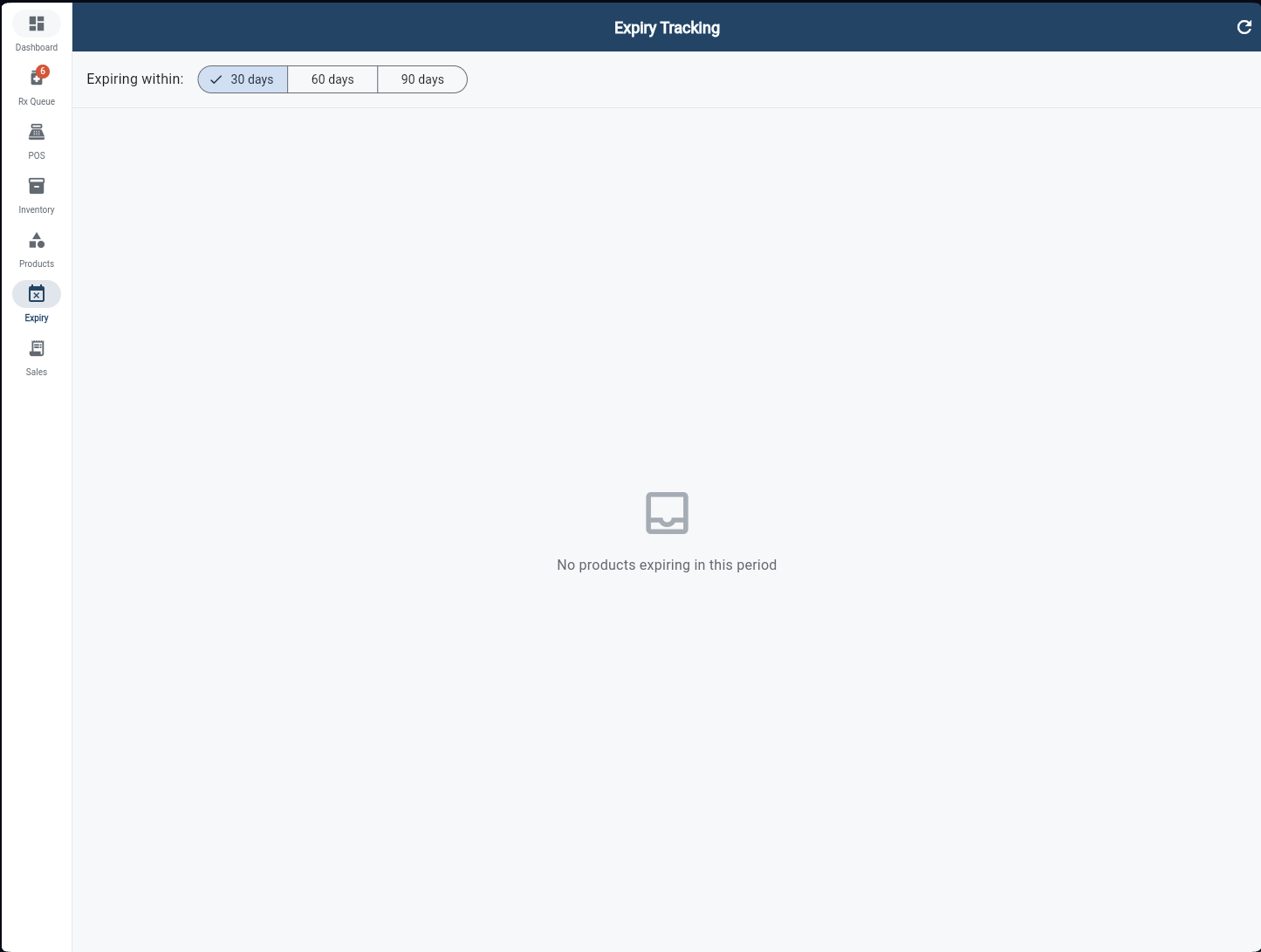
Expiry Tracking
Three filter tabs — 30 days, 60 days, 90 days — show exactly which products are approaching expiry and when. This proactive view lets pharmacists run clearance sales, flag items for disposal, or return stock to suppliers before it expires. Never lose money to expired medications sitting unnoticed on the shelf.
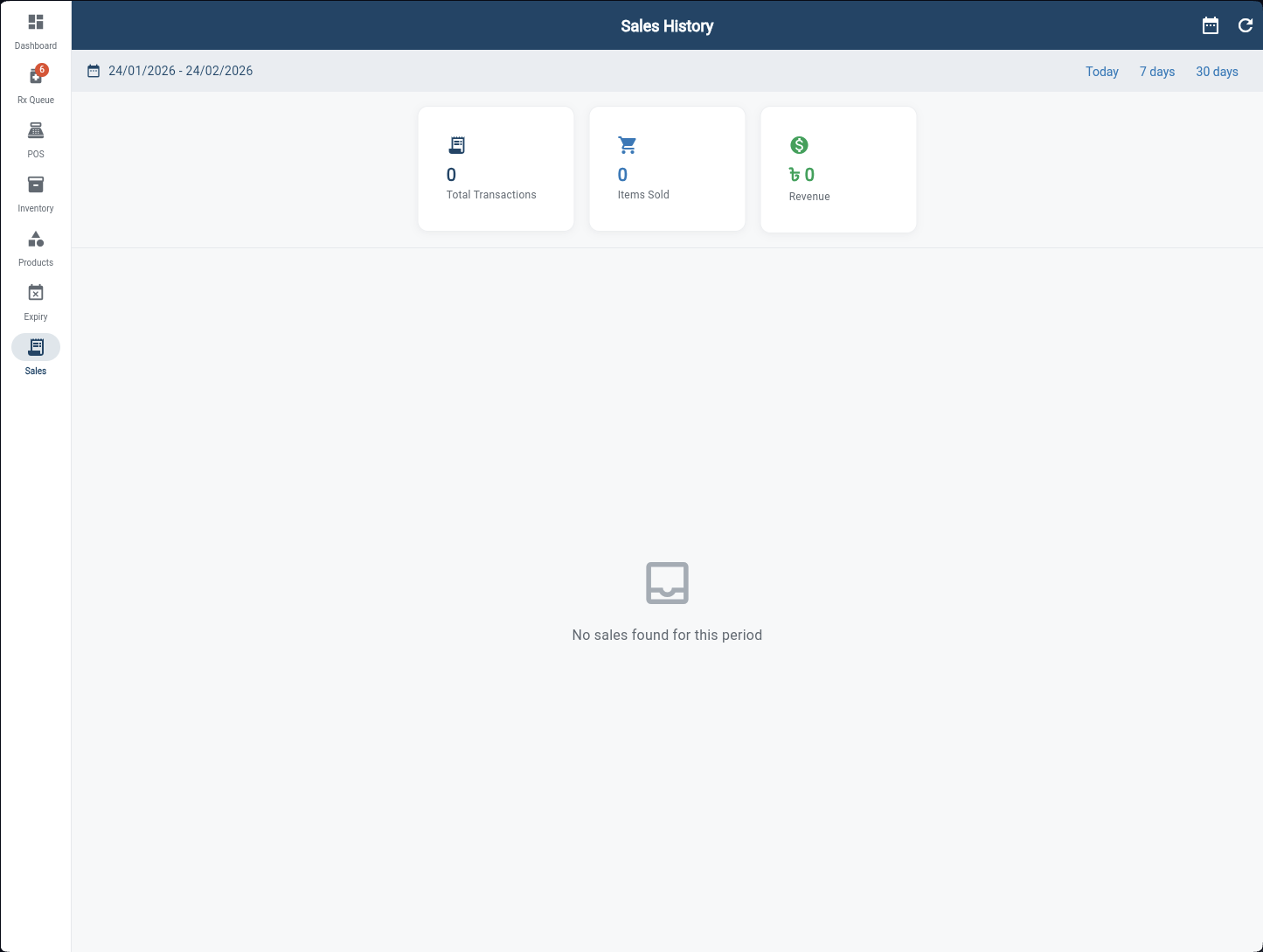
Sales History
A date-range sales report with three KPI cards — Total Transactions, Items Sold, and Revenue in BDT. Switch between Today, 7 days, and 30 days with one tap, or use the calendar to set a custom range. All completed sales are listed below for detailed review, giving the pharmacist and clinic owner full visibility into pharmacy revenue performance.